Ready AI in Your Device
STEP 1: Create a Container Stack
This section describes how to deploy container applications to the edge device.
1.1 Prepare a Docker Compose File
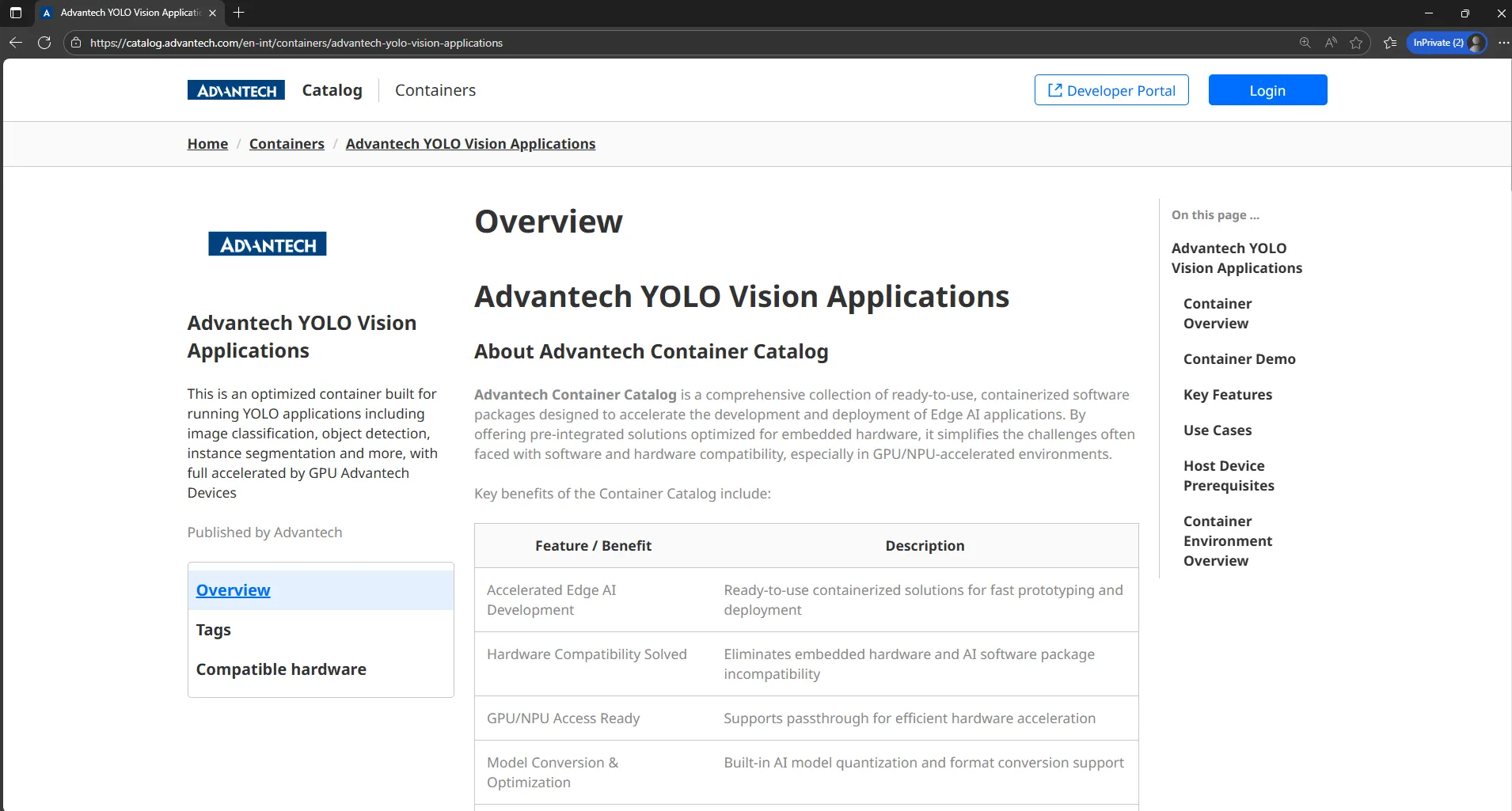
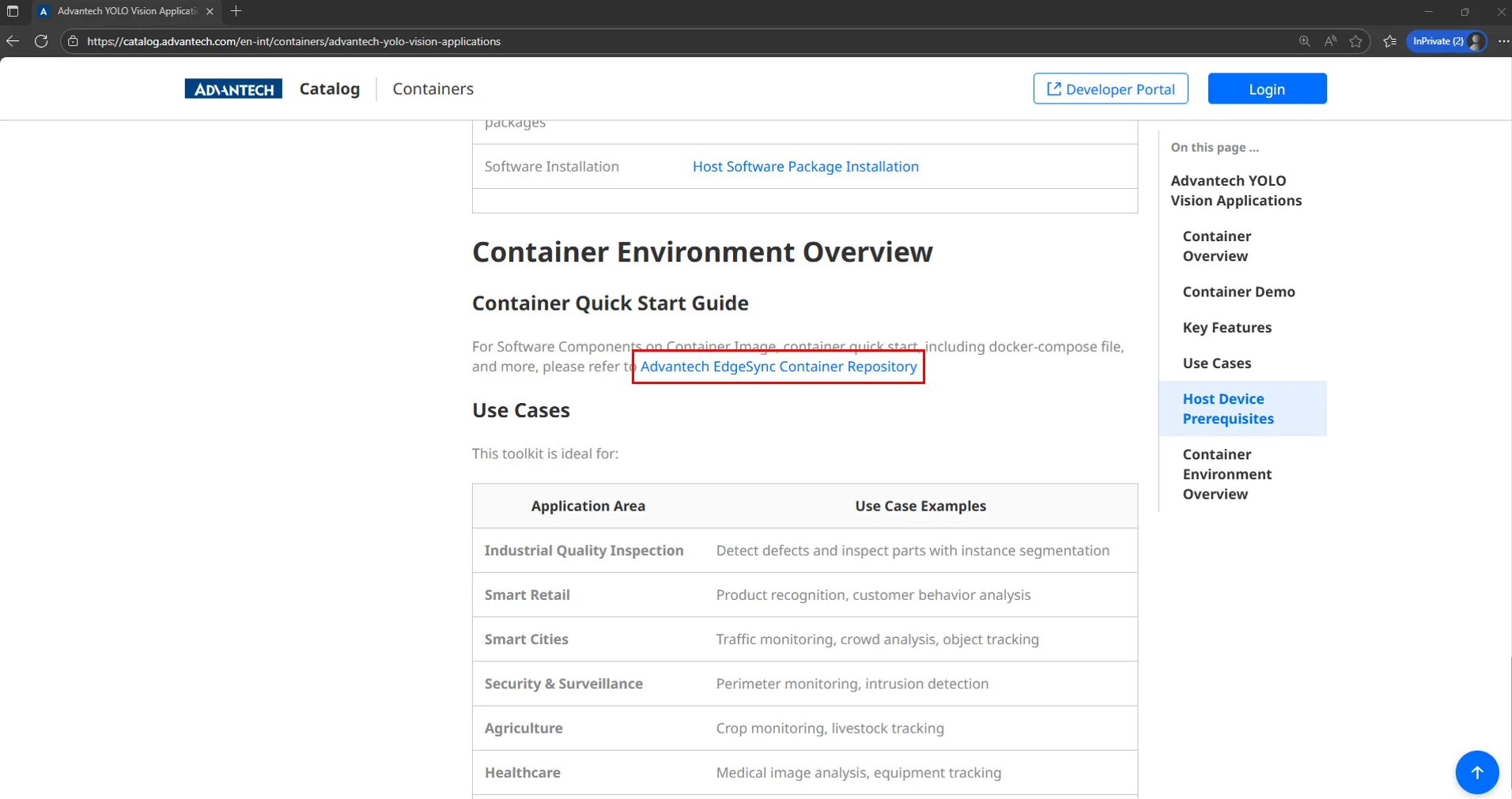
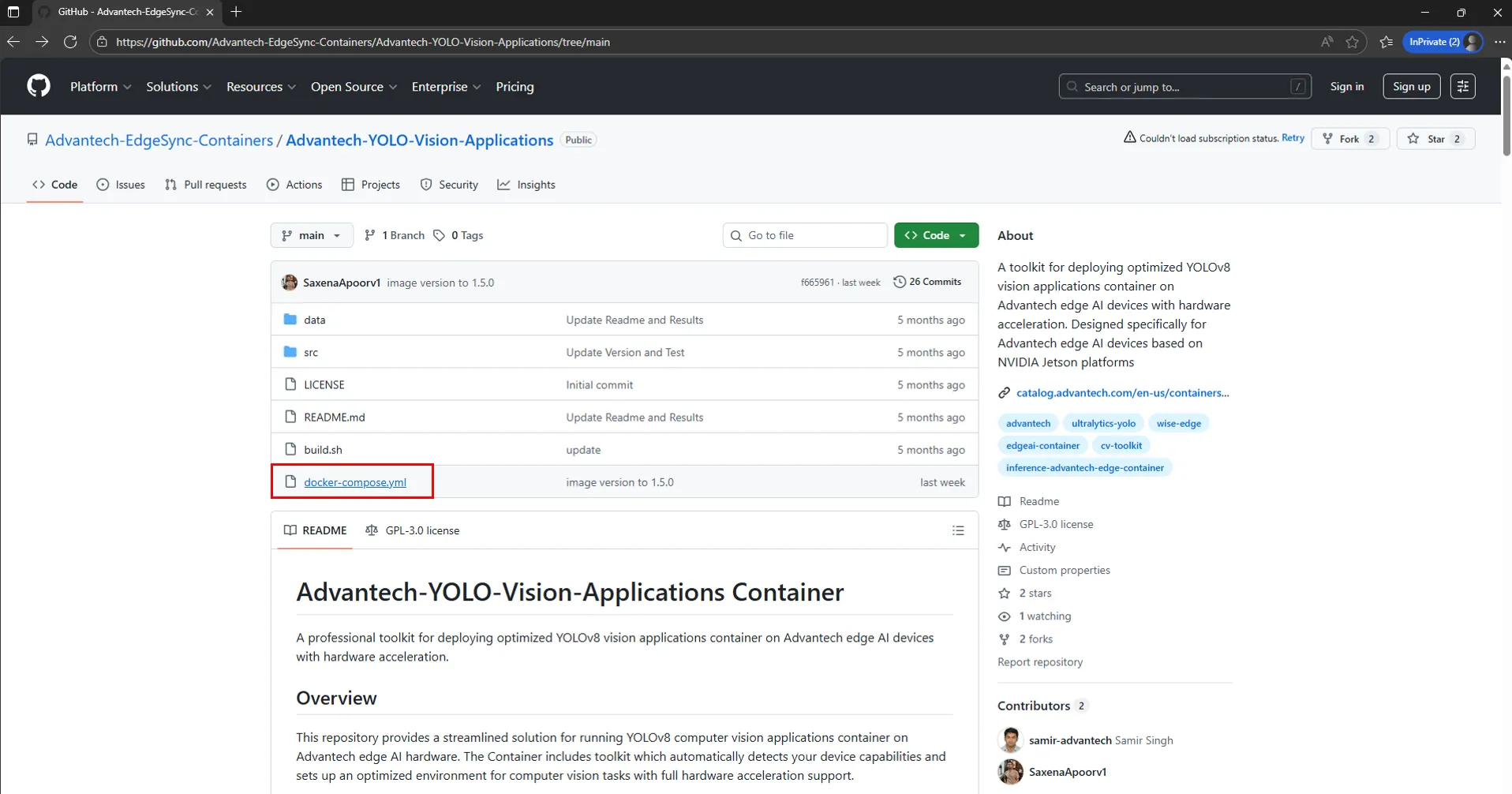
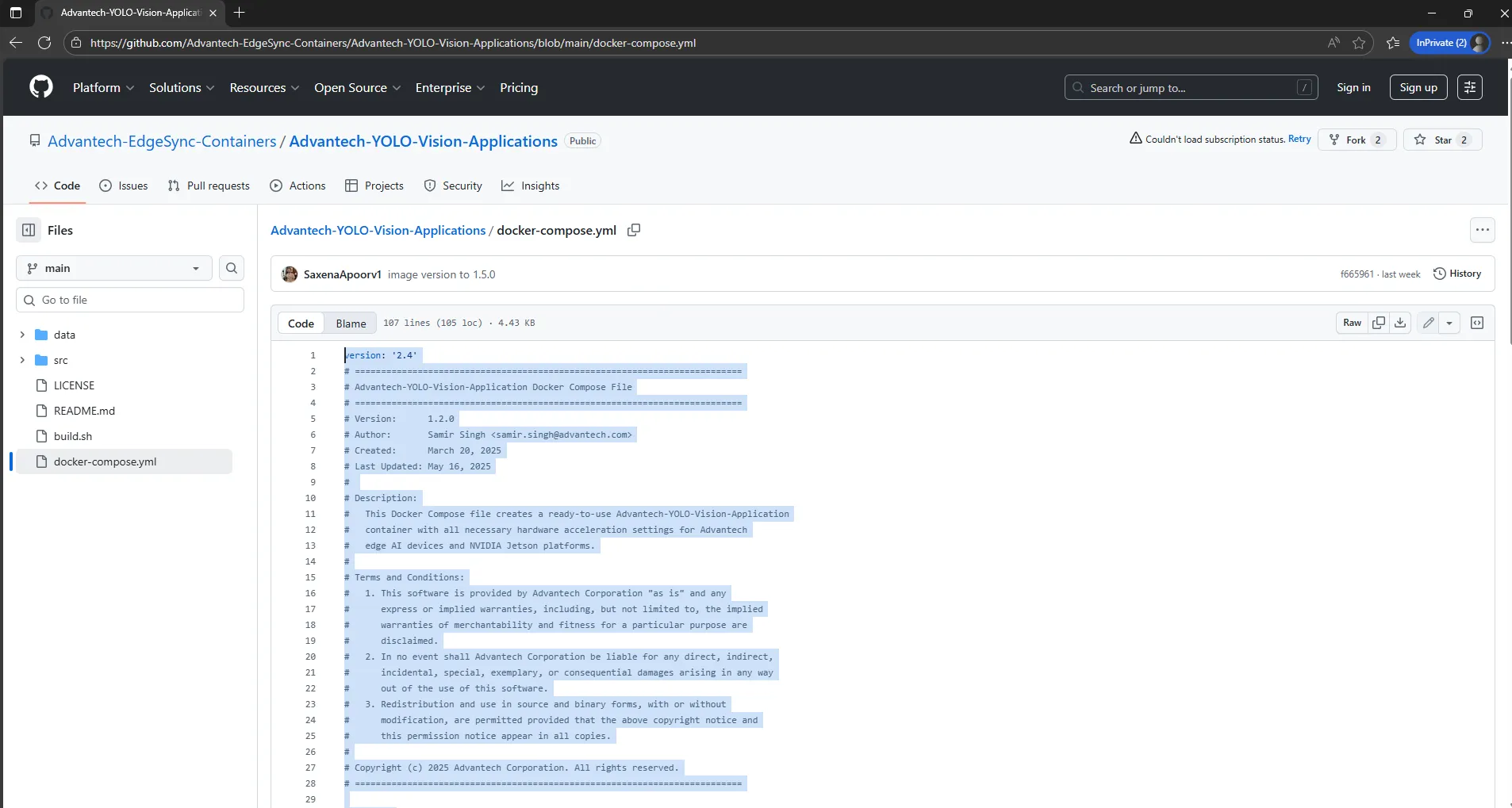
Prepare a docker-compose.yml file, or select a container from the Advantech Catalog which has a GitHub repository link.

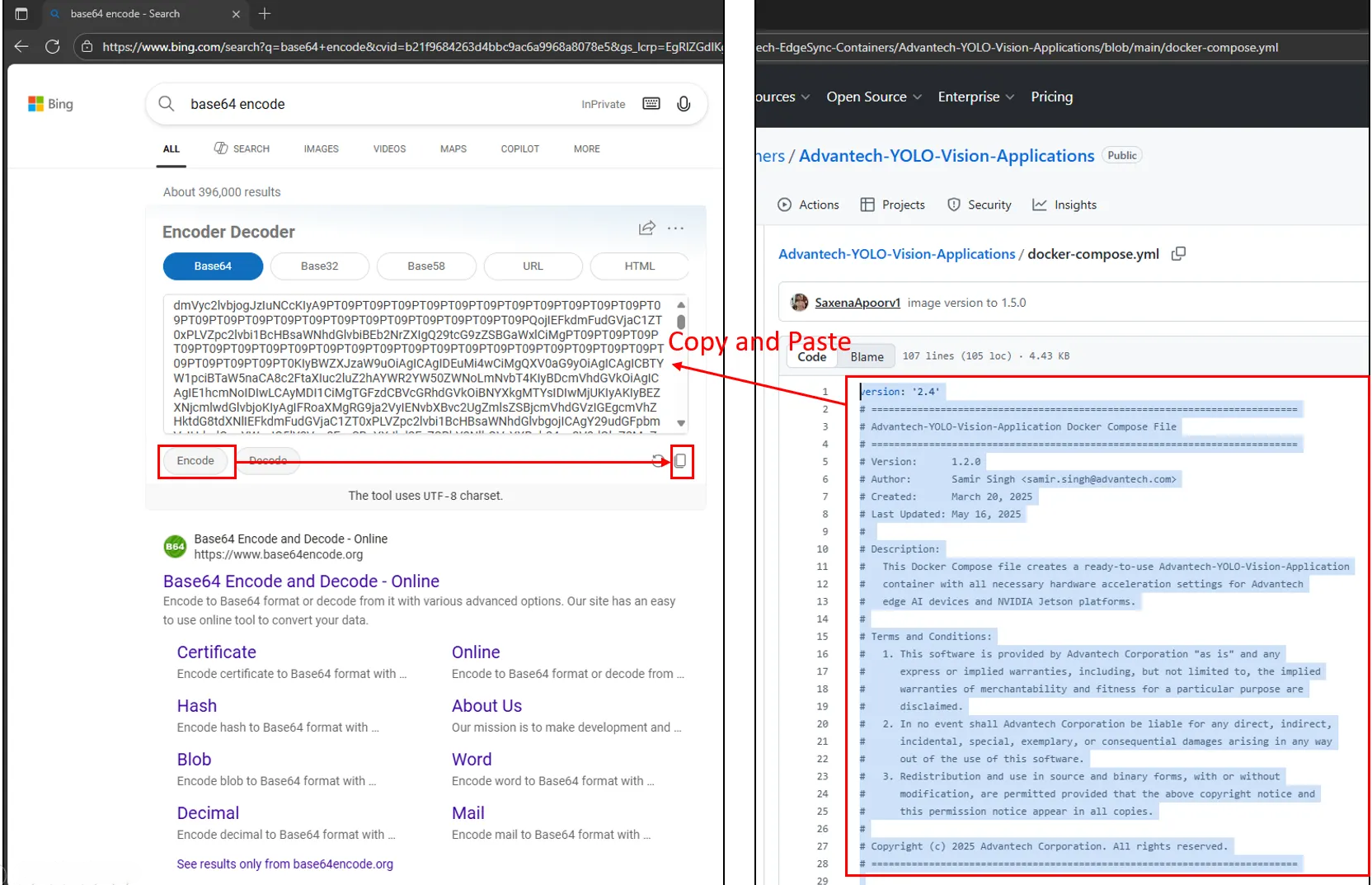
1.2 Encode the File in Base64
Copy the docker-compose.yml content and encode it in Base64 format. The encoded result will used as composeFileContent in the stack creation API request.
1.3 Create a Container Stack
Use the following API to create a container stack. Put the Base64-encoded Compose file in composeFileContent. The system will automatically assign a revision number.
Postman Collection: 4-Container-Stack > Stack Mgmt & Deployment
- Check Stack Name Availability: Check if the stack name is duplicated with existing stacks.
- Create Stack: Create a container stack with the Base64-encoded compose file.
- Get Stacks: Get the list of stacks to confirm the new stack creation.
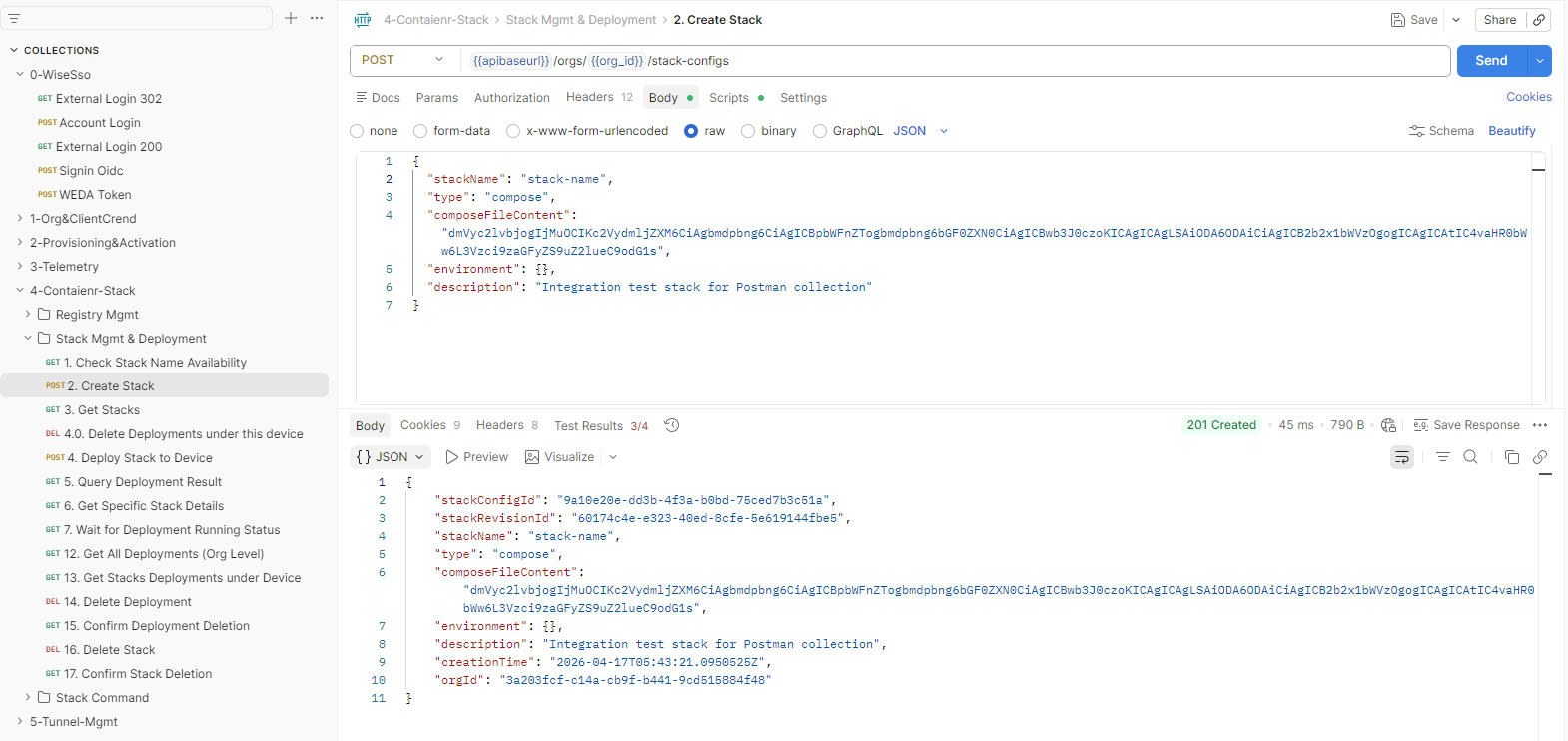
Example Request: Curl
curl --location --request POST 'https://{domain}/{tenantPath}/weda/api/v1/orgs/{orgID}/stack-configs' \
--header 'Content-Type: application/json' \
--header 'Authorization: Bearer {access-token}' \
--data '{
  "stackName": "stack-name1",
  "type": "compose",
  "composeFileContent": "{Base64-encoded}",
  "environment": {},
  "description": "this is description"
}'
Example Response
{
    "stackConfigId": "e700312d-18e9-4a93-b291-0108596b0a91",
    "stackRevisionId": "70e1771a-0fd3-4e85-9a17-6ea752f92d0b",
    "stackName": "stack-name1",
    "type": "compose",
    "composeFileContent": "{Base64-encoded}",
    "environment": {},
    "description": "this is description",
    "creationTime": "2025-10-30T09:42:39.014305Z",
    "orgId": "3a203fcf-c14a-cb9f-b441-9cd515884f48"
}
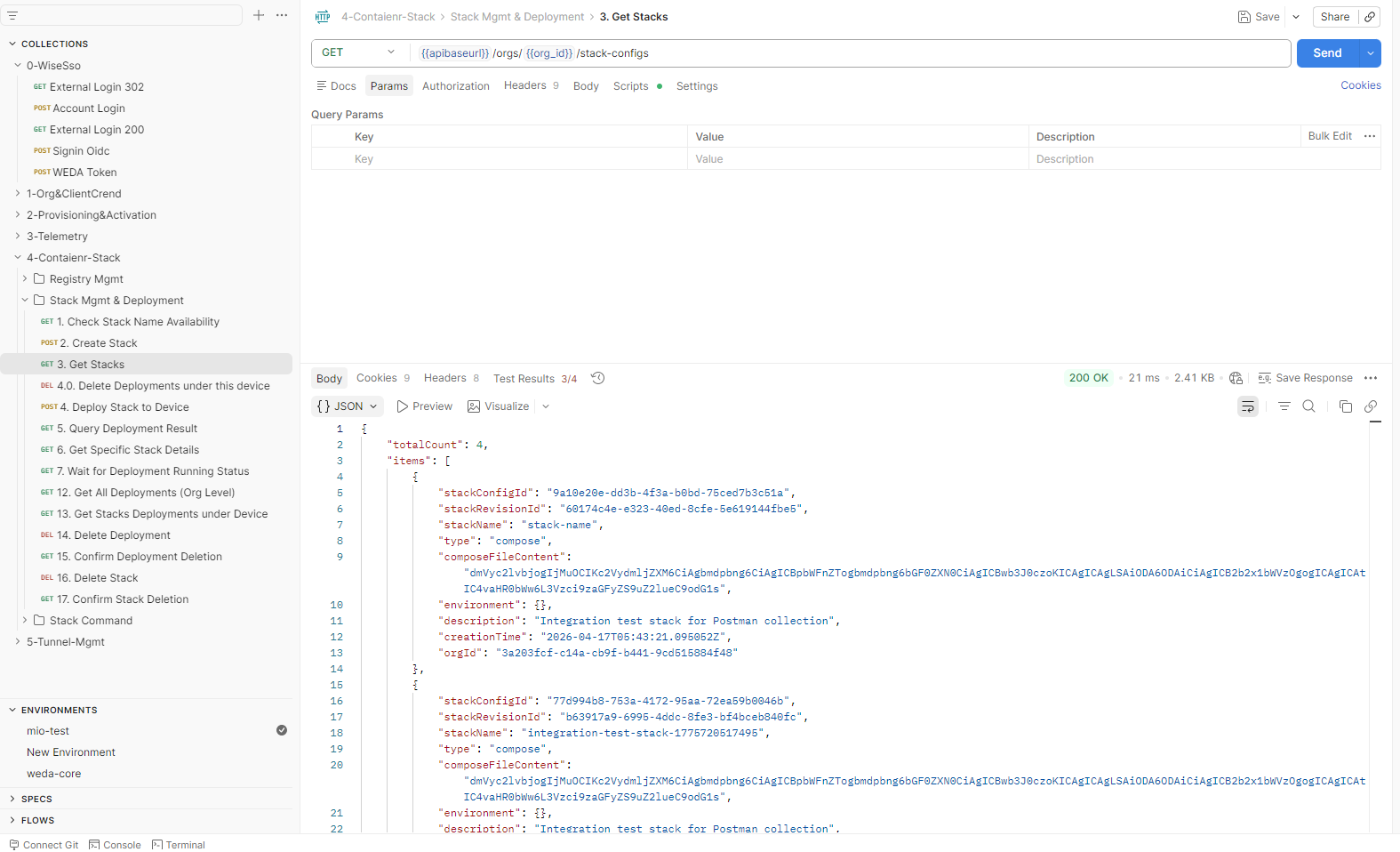
Example Request: Curl
curl --location --request GET 'https://{domain}/{tenantPath}/weda/api/v1/orgs/{orgID}/stack-configs' \
--header 'Content-Type: application/json' \
--header 'Authorization: Bearer {access-token}'
Example Response
{
    "totalCount": 1,
    "items": [
        {
            "stackConfigId": "e700312d-18e9-4a93-b291-0108596b0a91",
            "stackRevisionId": "70e1771a-0fd3-4e85-9a17-6ea752f92d0b",
            "stackName": "stack-name1",
            "type": "compose",
            "composeFileContent": "{Base64-encoded}",
            "environment": {},
            "description": "this is description",
            "creationTime": "2025-10-30T09:42:39.014305Z",
            "orgId": "3a203fcf-c14a-cb9f-b441-9cd515884f48"
        }
    ]
}
STEP 2: Deploy the Container Stack to the Device
2.1 Deploy the Container
Use the following API to deploy the container stack to an edge device. You can deploy the same stack to multiple devices by providing a list of deviceIds.
Postman Collection: 4-Container-Stack > Stack Mgmt & Deployment
- Delete Deployments under this device: (Optional) Delete all existing stack deployments on the device to avoid conflict with the new deployment.
- Deploy Stack to Device: Deploy the stack to the device by providing the stack revision ID and device ID.
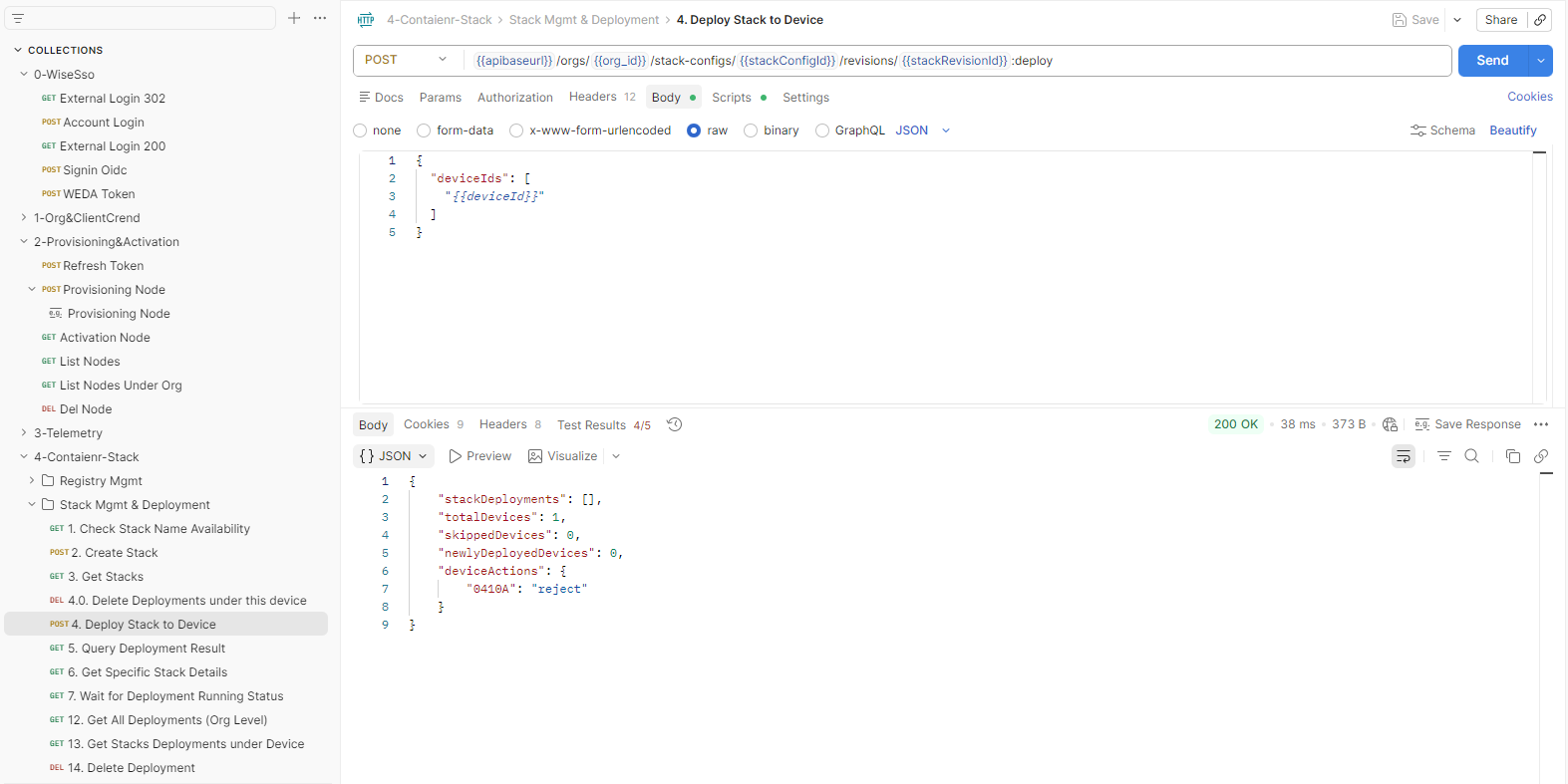
Example Request: Curl
curl --location --request POST 'https://{domain}/{tenantPath}/weda/api/v1/orgs/3a1d40ed-4f97-aed8-c727-57704d3d5d2e/stack-configs/e700312d-18e9-4a93-b291-0108596b0a91/revisions/70e1771a-0fd3-4e85-9a17-6ea752f92d0b:deploy' \
--header 'Content-Type: application/json' \
--header 'Authorization: Bearer {access-token}' \
--data '{
  "deviceIds": [
    "48b02d8861de"
  ]
}'
Example Response
{
    "stackDeployments": [
        {
            "stackRevision": "70e1771a-0fd3-4e85-9a17-6ea752f92d0b",
            "deploymentId": "b4833ebb-ac6c-4a77-a075-e7ad0e036790",
            "taskId": "c0383dfc-e918-41f3-997e-4f5fa1ace7d8",
            "stackName": "stack-name1",
            "deviceId": "48b02d8861de",
            "status": "deploying",
            "containers": [],
            "error": {},
            "active": true
        }
    ],
    "totalDevices": 1,
    "skippedDevices": 0,
    "newlyDeployedDevices": 1,
    "deviceActions": {
        "48b02d8861de": "add"
    }
}
2.2 Check Stack Deployments
Use the following API to view active stack deployments and verify the stack status on the edge device.
Postman Collection: 4-Container-Stack > Stack Mgmt & Deployment & Stack Command
- Query Deployment Result: Get the list of active stack deployments in the organization.
- Get Specific Stack Details: Get the deployment details of a specific stack by providing the stack revision ID.
- Wait for Deployment Running Status: Wait and refresh the stack deployment status until it shows "running".
- Execute Stack Command (Pause): (Optional) Execute a command to pause the stack and check the stack status change.
- Query Command Execution Logs: (Optional) Query the execution logs of the stack command to verify the command execution result.
- Query Command Results - Without Range Parameter: (Optional) Query the command execution result without providing the time range parameter to get all execution results.
- Query Command Results - Latest Only: (Optional) Query the command execution result with a time range parameter to get the latest execution result only.
- Execute Stack Command (Resume): (Optional) Execute a command to resume the stack and check the stack status change.
- Get All Deployments (Org Level): Get the list of all stack deployments in the organization to confirm the current active deployments.
- Get Stacks Deployment under Device: Get the list of stack deployments on a specific device by providing the device ID.
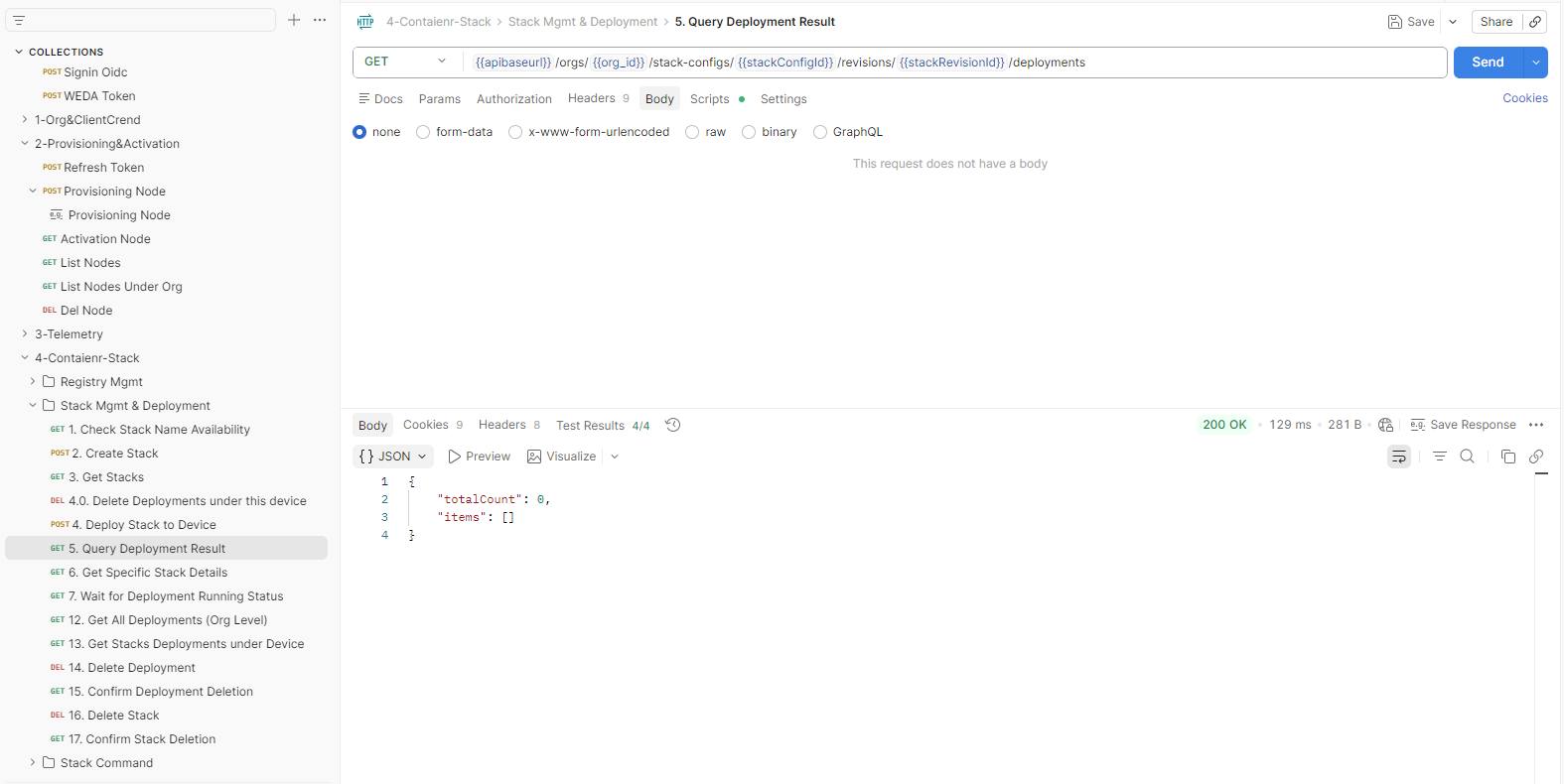
Example Request: Curl
curl --location --request GET 'https://{domain}/{tenantPath}/weda/api/v1/orgs/3a1d40ed-4f97-aed8-c727-57704d3d5d2e/stack-configs/deployments' \
--header 'Content-Type: application/json' \
--header 'Authorization: Bearer {access-token}'
Example Response
{
    "totalCount": 1,
    "items": [
        {
            "stackRevision": "70e1771a-0fd3-4e85-9a17-6ea752f92d0b",
            "deploymentId": "b4833ebb-ac6c-4a77-a075-e7ad0e036790",
            "taskId": "c0383dfc-e918-41f3-997e-4f5fa1ace7d8",
            "stackName": "stack-name1",
            "deviceId": "48b02d8861de",
            "status": "running(1)",
            "containers": [
                {
                    "id": "586e6eb9-5f0c-4173-9c9e-937a50c45fa7",
                    "name": "advantech-yolo-vision",
                    "state": "",
                    "restartCount": 0,
                    "created": 1761891735912,
                    "errors": []
                }
            ],
            "error": {},
            "active": true
        }
    ]
}
If the response shows "status": "running", the container is successfully running on the edge device.
Other APIs in the 4-Container-Stack collection:
- Registry Mgmt:
- Create Registry (AWS ECR): Create a container registry with AWS ECR credentials.
- Get All Registries: Get the list of all container registries in the organization.
- Get Registry by ID: Get the details of a specific registry by providing the registry ID.
- Update Registry: Update the registry credentials or information by providing the registry ID.
- Delete Registry: Delete a registry by providing the registry ID.
- Stack Mgmt & Deployment:
- Delete Deployment: Delete an active stack deployment by providing the deployment ID to stop the container running on the device.
- Confirm Deployment Deletion: Confirm the stack deployment deletion by checking the deployment status or querying the deployment details after deletion.
- Delete Stack: Delete a container stack by providing the stack configuration ID.
- Confirm Stack Deletion: Confirm the stack deletion by checking the stack list or querying the stack details after deletion.
Note: Registry Mgmt APIs are used to manage container registries for private images.
Other APIs in the 5-Tunnel-Mgmt collection:
- List Tunnels with Pagination: Get the list of tunnels with pagination support by providing page number and page size.
- Create Tunnel: Create a tunnel for remote access to the device.
- Get Tunnel Detail by ID: Get the details of a specific tunnel by providing the tunnel ID.
- Wait for ESTABLISHED Status: Wait and refresh the tunnel status until it shows "ESTABLISHED".
- Terminate Tunnel: Terminate an active tunnel by providing the tunnel ID.
- Wait for TERMINATED Status: Wait and refresh the tunnel status until it shows "TERMINATED".
Note: Tunnel Mgmt APIs are used to manage remote access tunnels to the device.